Getting started
Getting started with Yomi
How to get going as a seller or a buyer, connect with your estate agent, and what you’ll see as your sale moves on.
Want the bigger picture first? How it works explains why Yomi puts everyone on the same sale.
For sellers
Selling a home
Five steps from download to choosing your estate agent.
Get the app and sign up
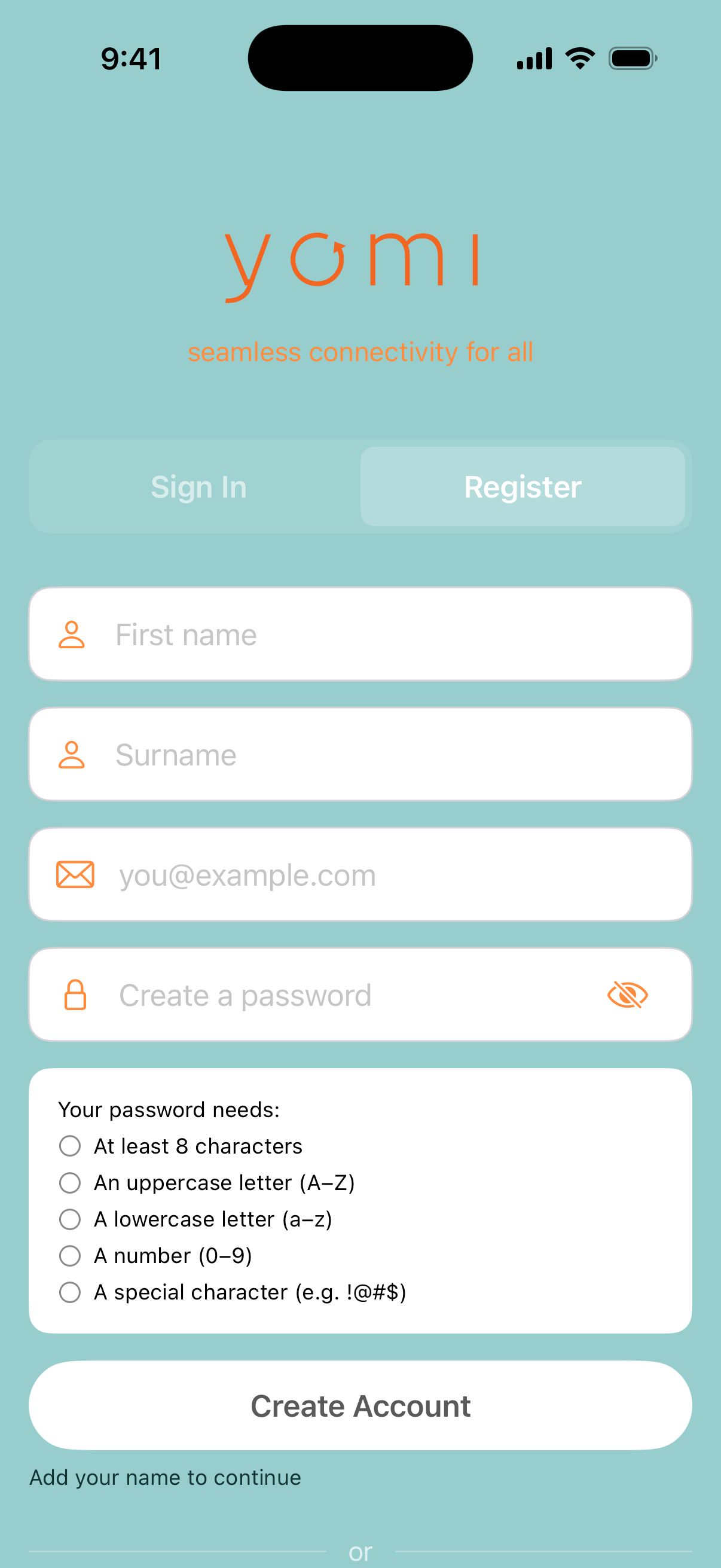
Download Yomi Home, tap Register and add your name and contact details. When asked, say you’re selling.
Connect with estate agents
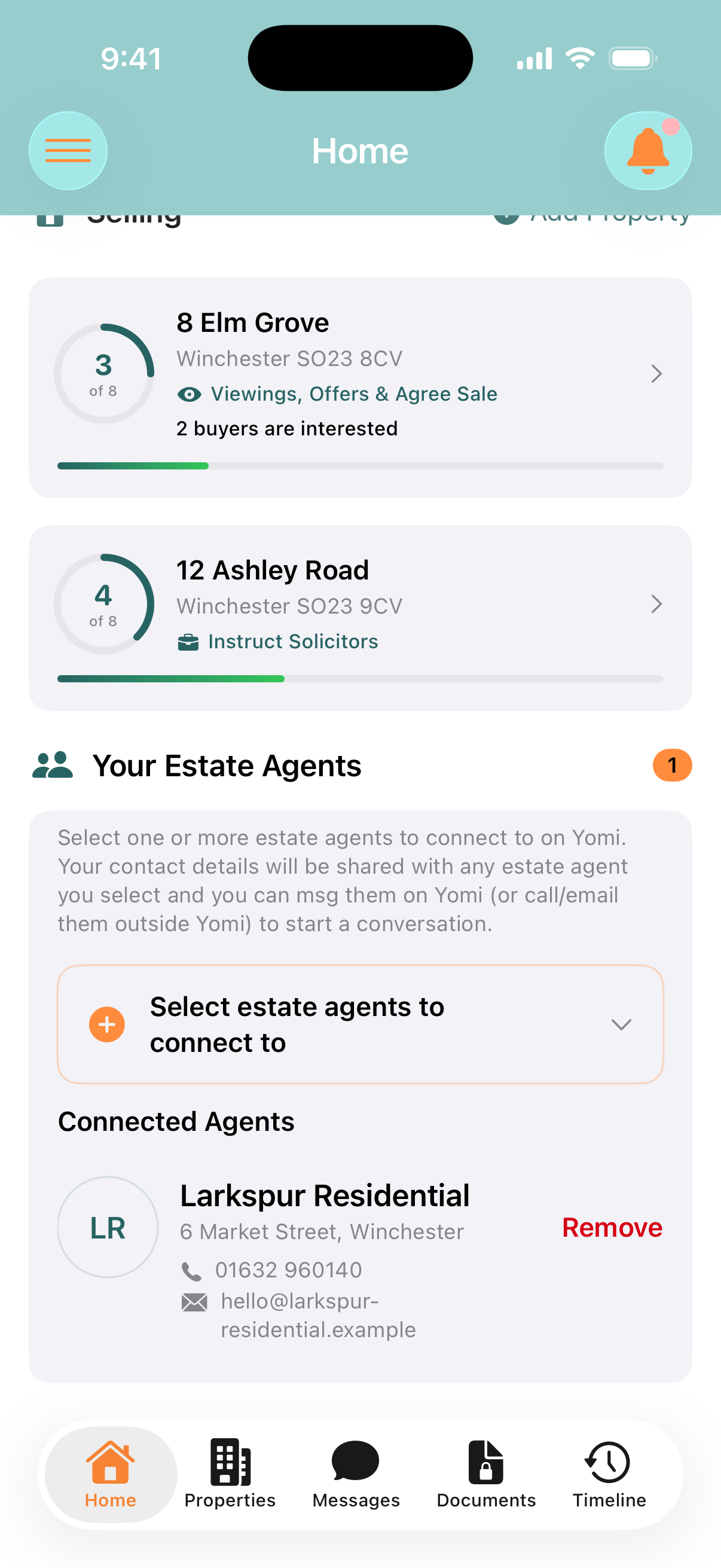
On the Home screen, go to Your Estate Agents and tap Select estate agents to connect to. Search by agency, area or postcode, then tap each agency you’d like to hear from. They’ll see your contact details.
Add your property
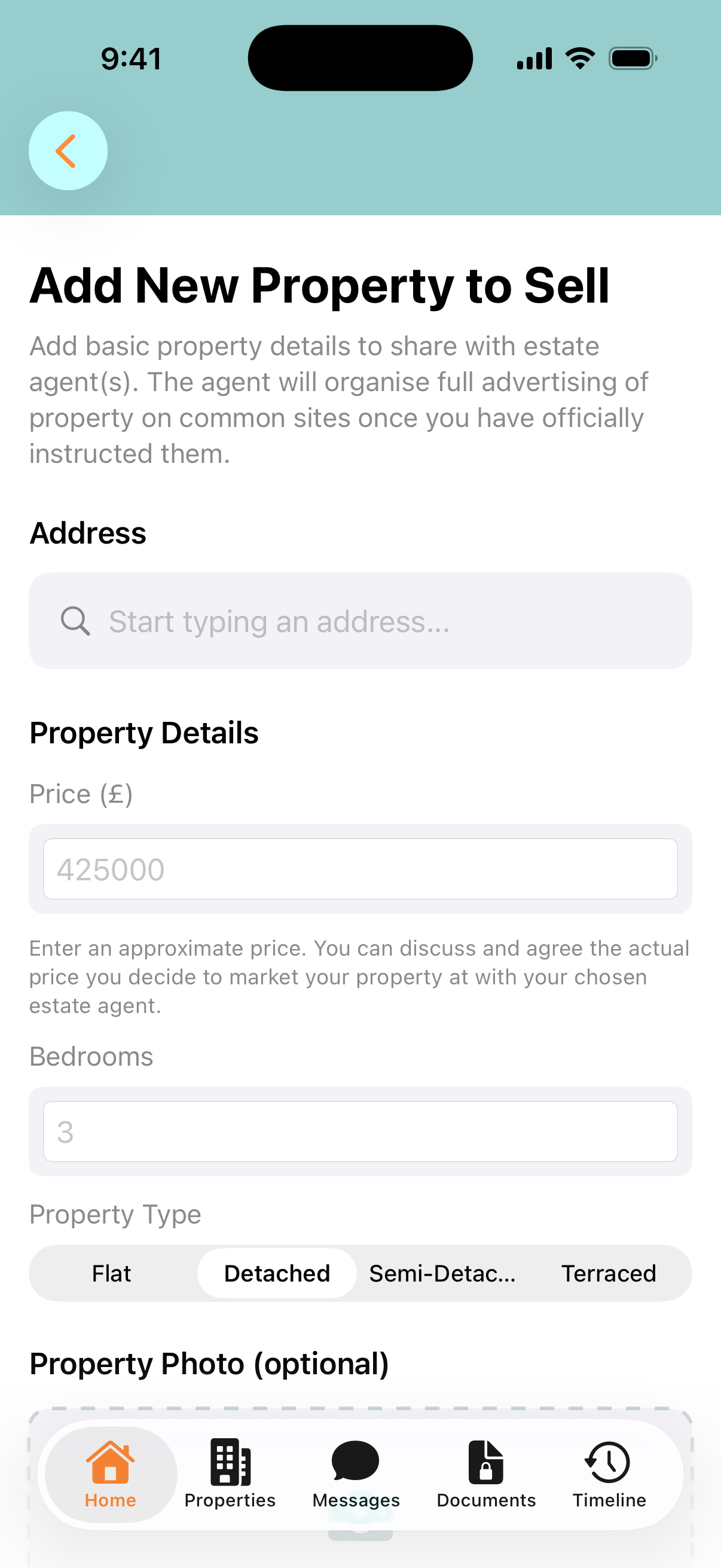
Tap Add Property and fill in the basics: the address, a rough price, the type of home and a photo if you have one. You’ll agree the real asking price with the agent you choose.
Share it with your agents
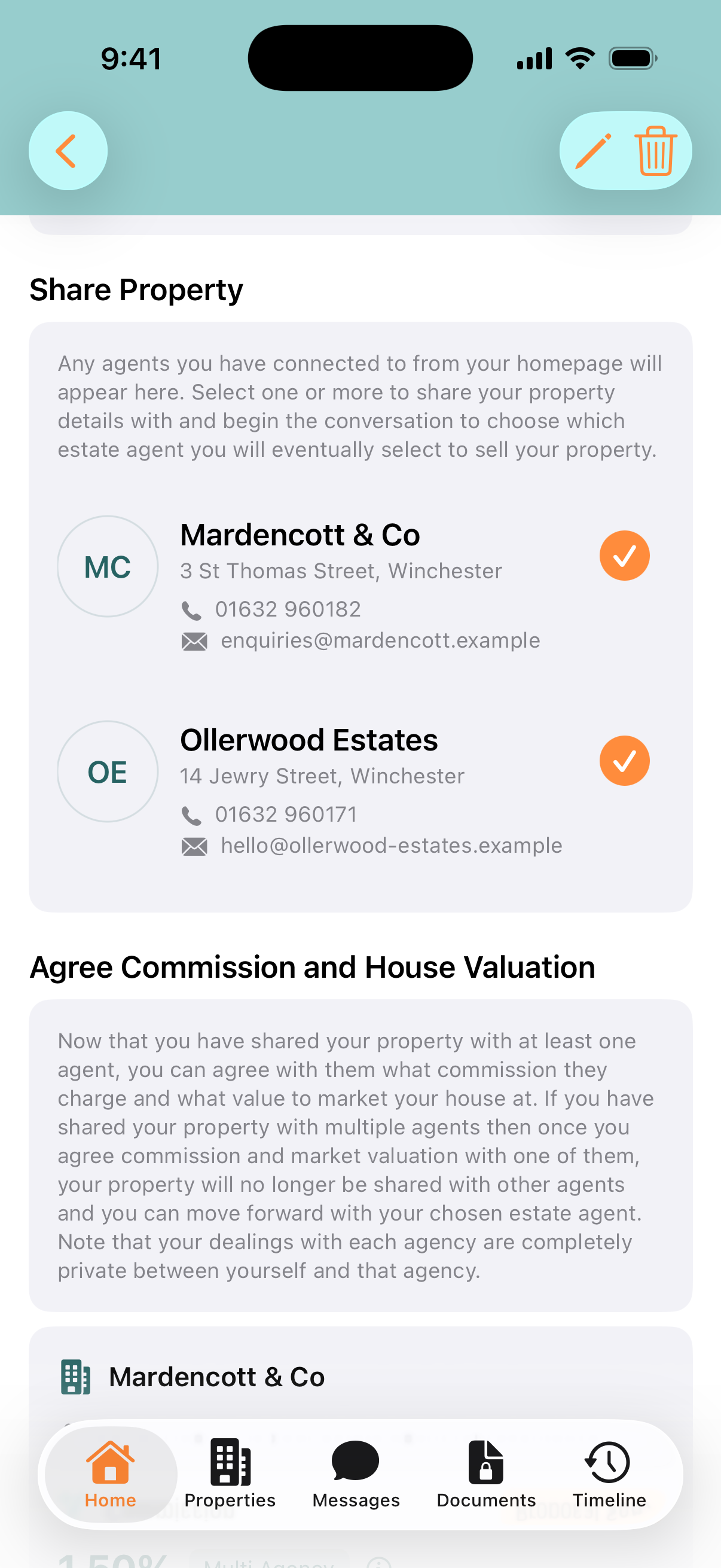
Open your property. Under Share Property, pick one agent or as many as you like.
Agree commission and valuation, then choose
Each agency proposes its commission and a valuation, and can offer times for a valuation visit. Accept, counter or decline each one. Once you’ve agreed both with an agency, tap Choose and the agency’s name. Agencies you don’t choose are told they weren’t selected.
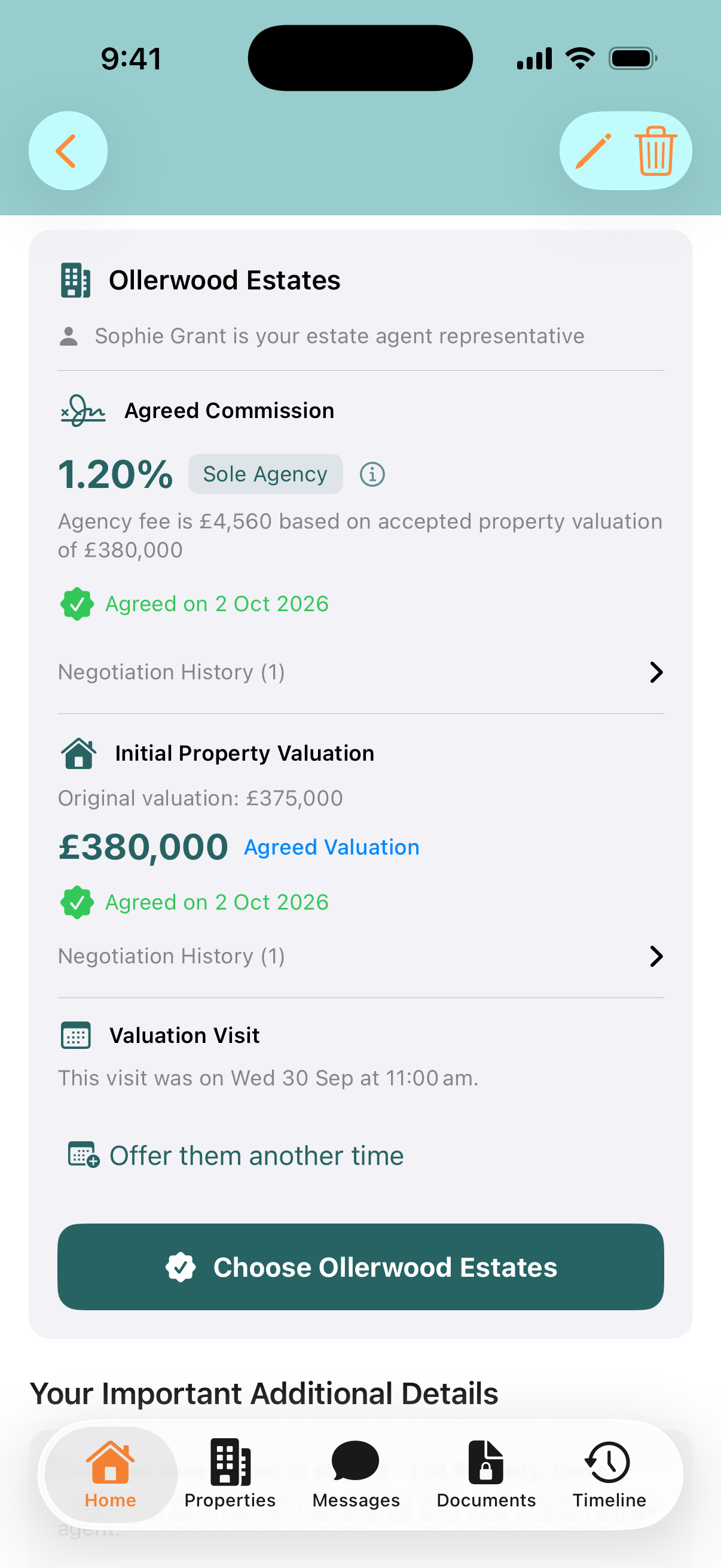
You’re up and running. Your sale now shows Transaction Progress. See what happens next.
If someone isn’t on Yomi yet
- Your estate agent
- Not on Yomi yet? You can only connect with agencies that use Yomi, so give yours a nudge to check us out. We’d love to hear from them at sales@yomigroup.com.
- Your buyer
- Buyers make offers through Yomi Home. If someone interested isn’t on Yomi yet, your agent can ask them to download it and connect.
- Your solicitor
- Not on Yomi yet? No problem — add their details yourself and you can keep the big moments, like exchange and completion, up to date in the app. And do nudge them to check out Yomi 😉
For buyers
Buying a home
Four steps from download to your first viewing, plus one you can do any time.
Get the app and sign up
Download Yomi Home, tap Register and add your name and contact details. When asked, say you’re buying.
Seen a home you like on a property search website?
Contact the estate agent as you normally would, and ask them: do you use Yomi?
Connect with them on Yomi
On the Home screen, go to Your Estate Agents, tap Select estate agents to connect to, find the agency and tap it. They’ll see your contact details.
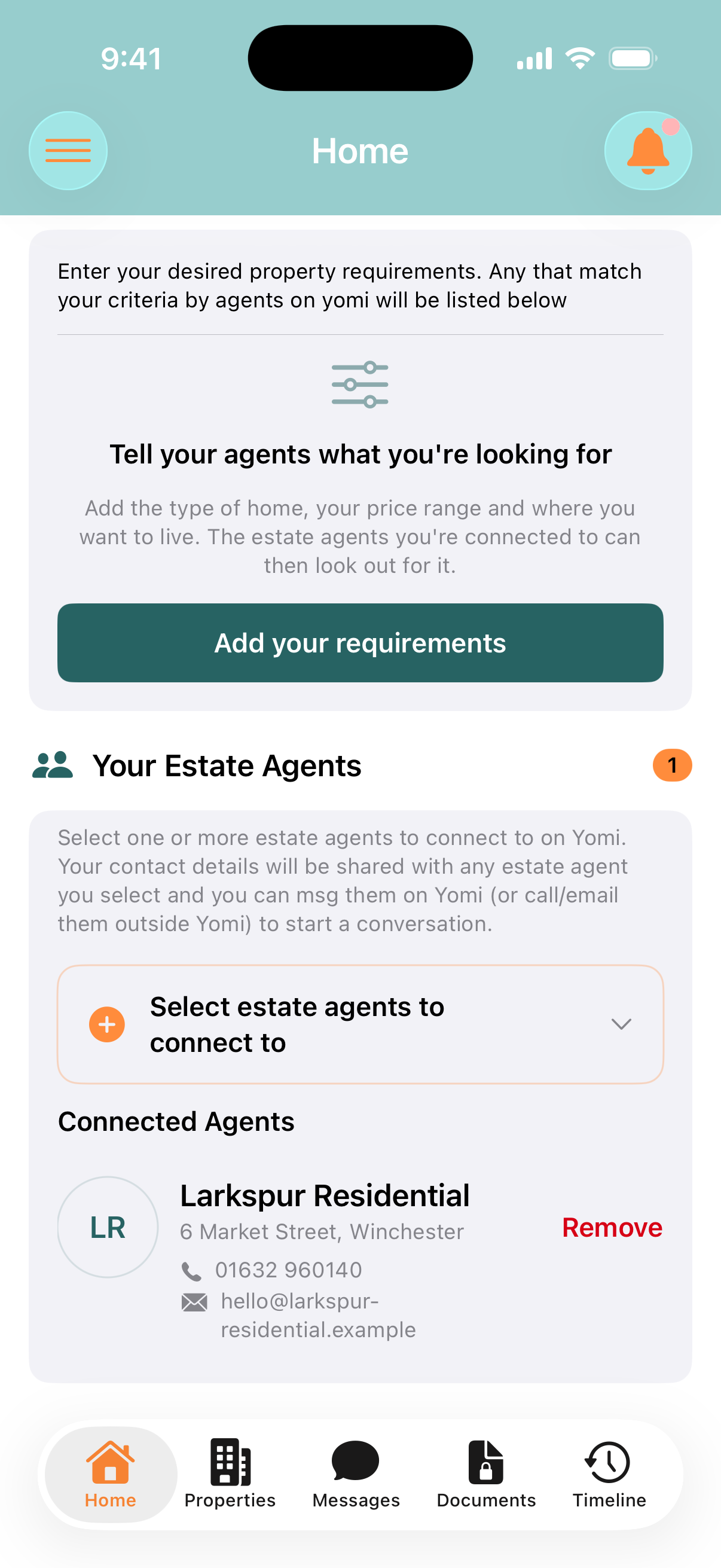
Your agent shares the home with you
It appears under Buying on your Home screen. From there you can book a viewing and make an offer.
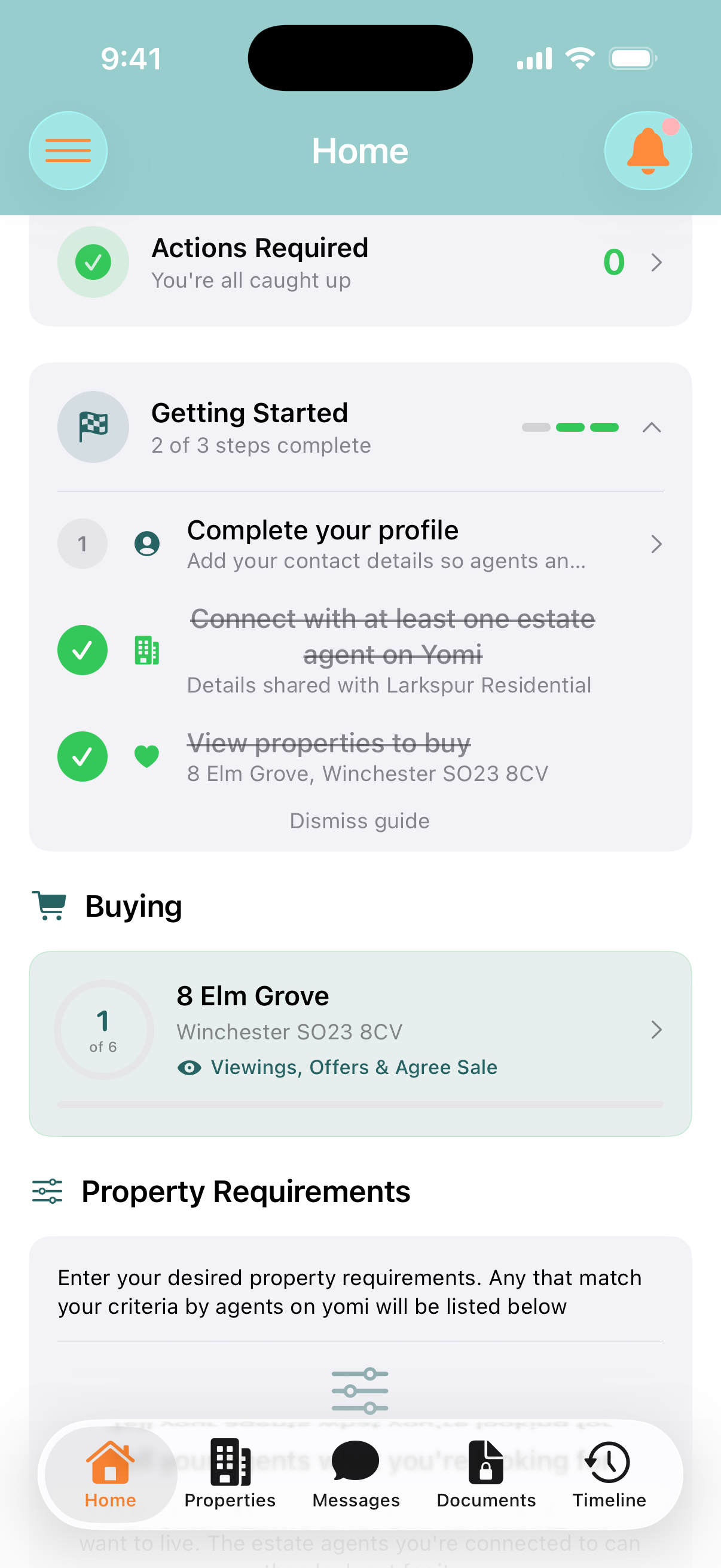
OPTIONAL
Tell agents what you’re looking for
Tap Add your requirements: the type of home, price range, bedrooms and postcode areas. Matching homes from agencies on Yomi appear under Homes that match. Tap Register interest on one you like. The agent sees your name and contact details, what you’re looking for and how you’re buying.
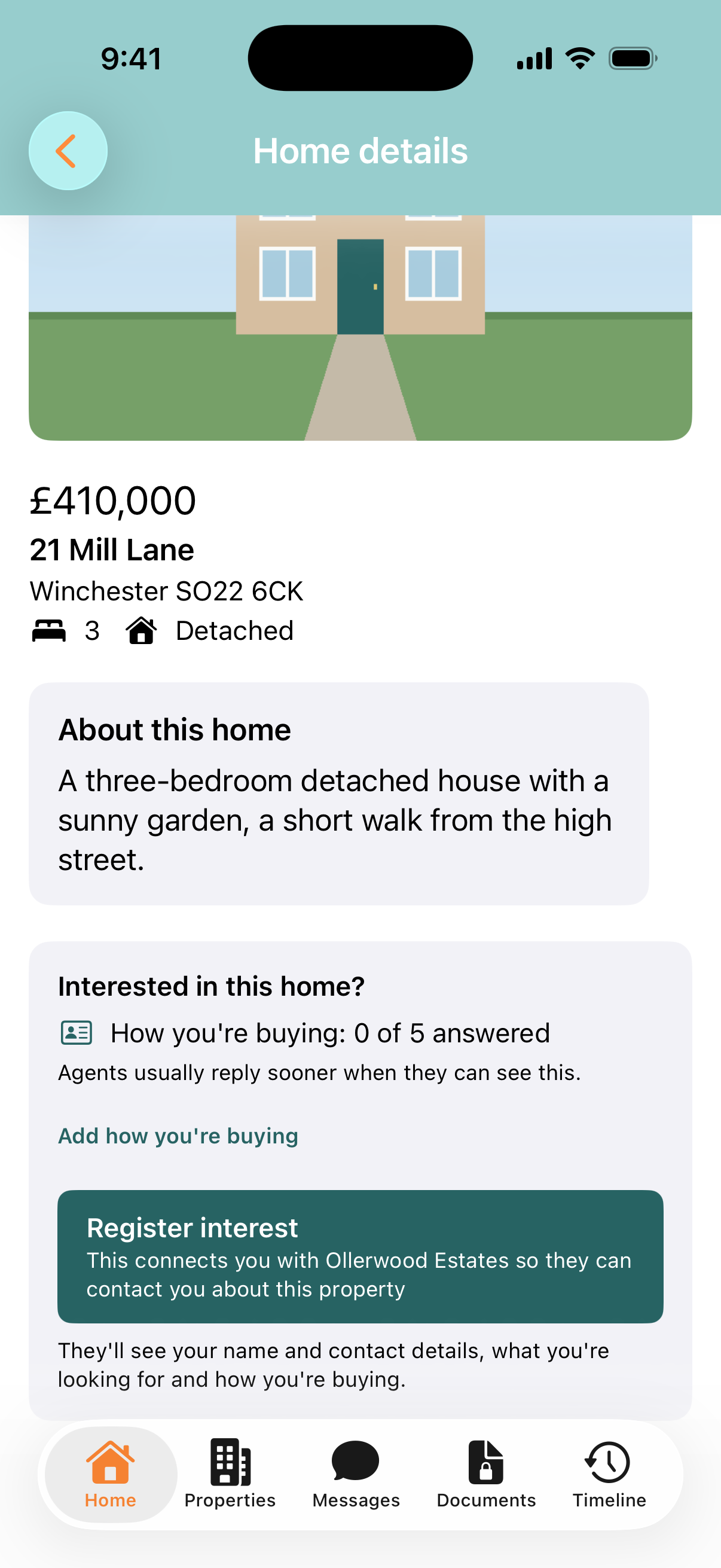
You’re up and running. See what happens next.
If someone isn’t on Yomi yet
- The estate agent
- Not on Yomi yet? Then you won’t find them in the app — so give them a nudge to check us out. We’d love to hear from them at sales@yomigroup.com.
- The seller
- You can only follow a sale on Yomi when the seller has put their home on Yomi. Your agent can tell you if they have.
- Your solicitor
- Not on Yomi yet? No problem — add their details yourself and you can keep the big moments, like exchange and completion, up to date in the app. And do nudge them to check out Yomi 😉
Sellers and buyers
As your sale moves on
Every sale on Yomi follows the same steps. Buyers join at Viewings, Offers & Agree Sale, so the app counts that as step 1.
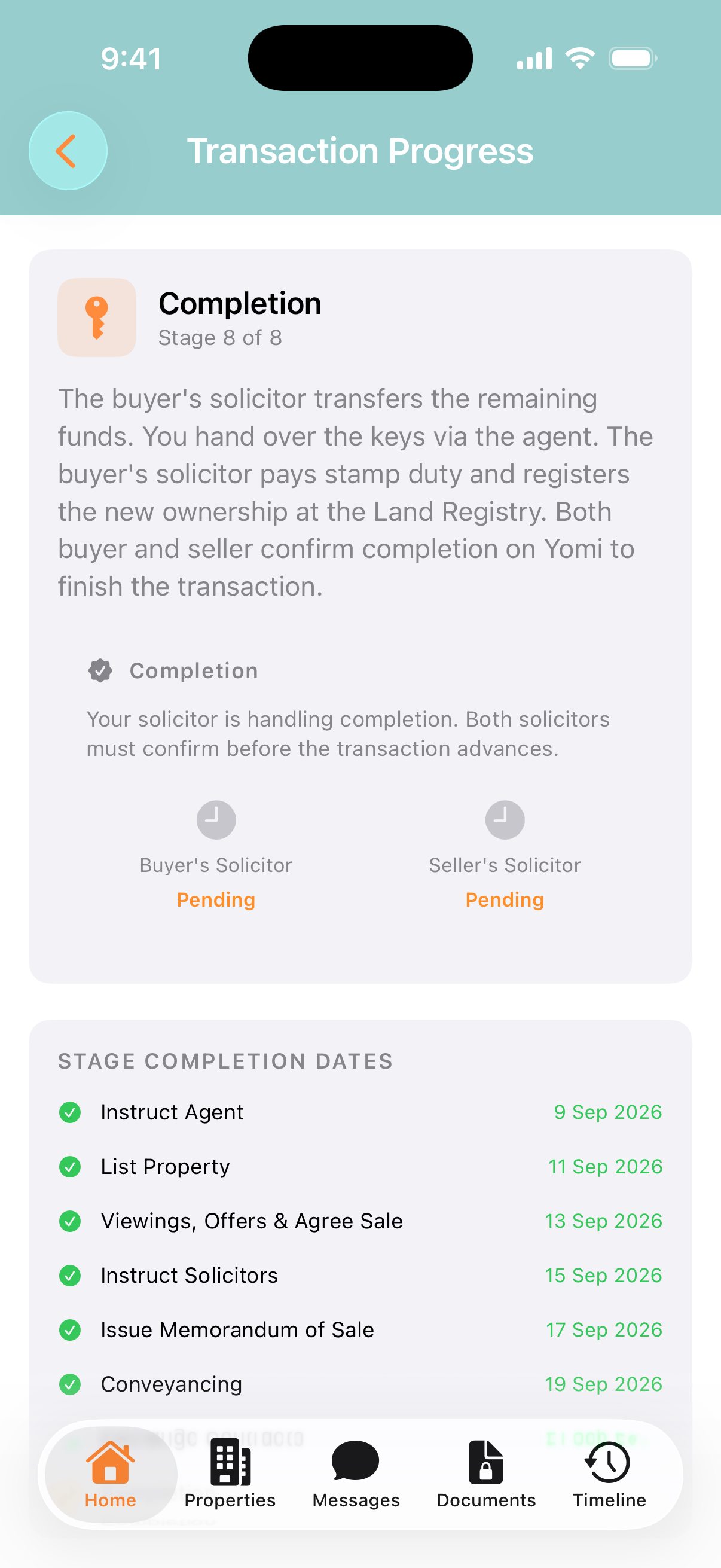
Transaction Progress
Open your property and tap Transaction Progress to see where you are, what happens next and who needs to act.
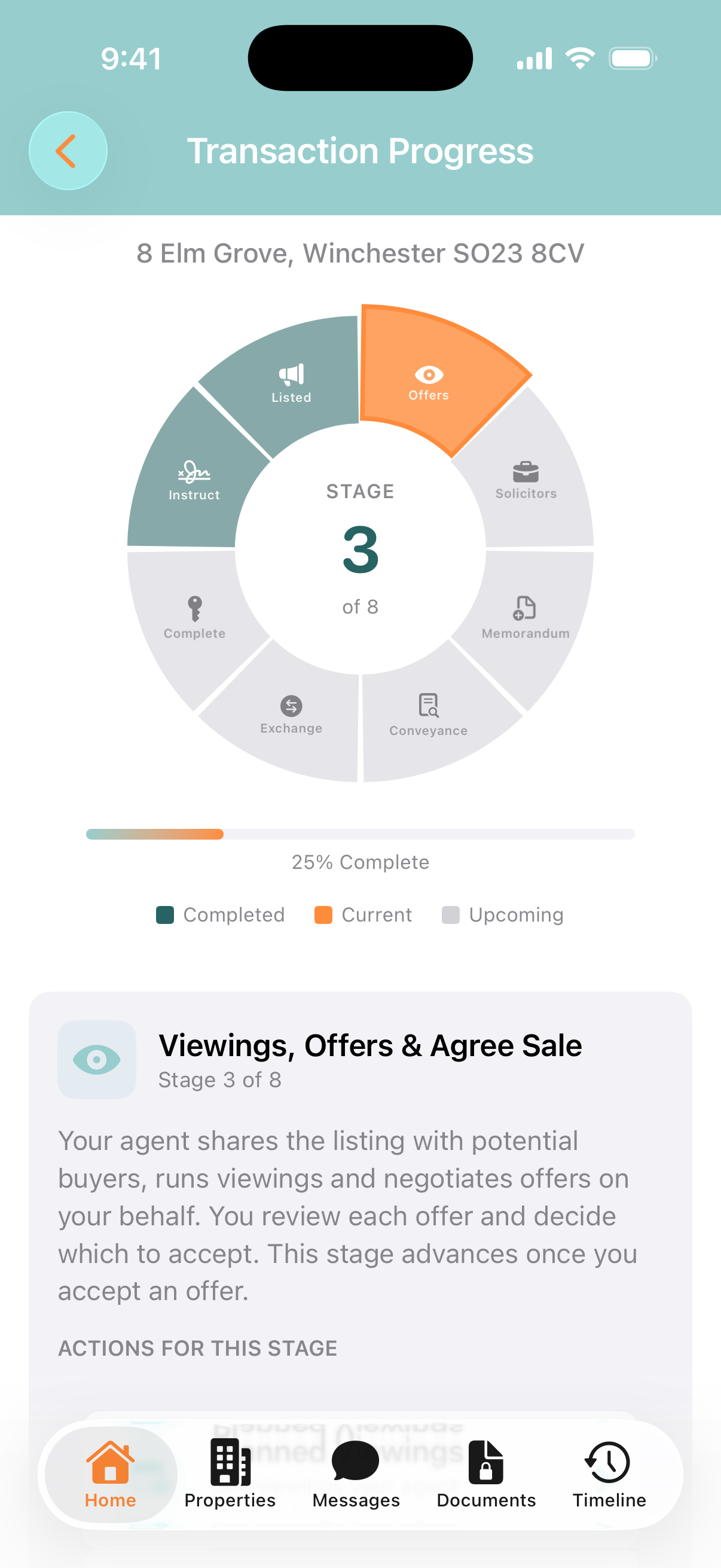
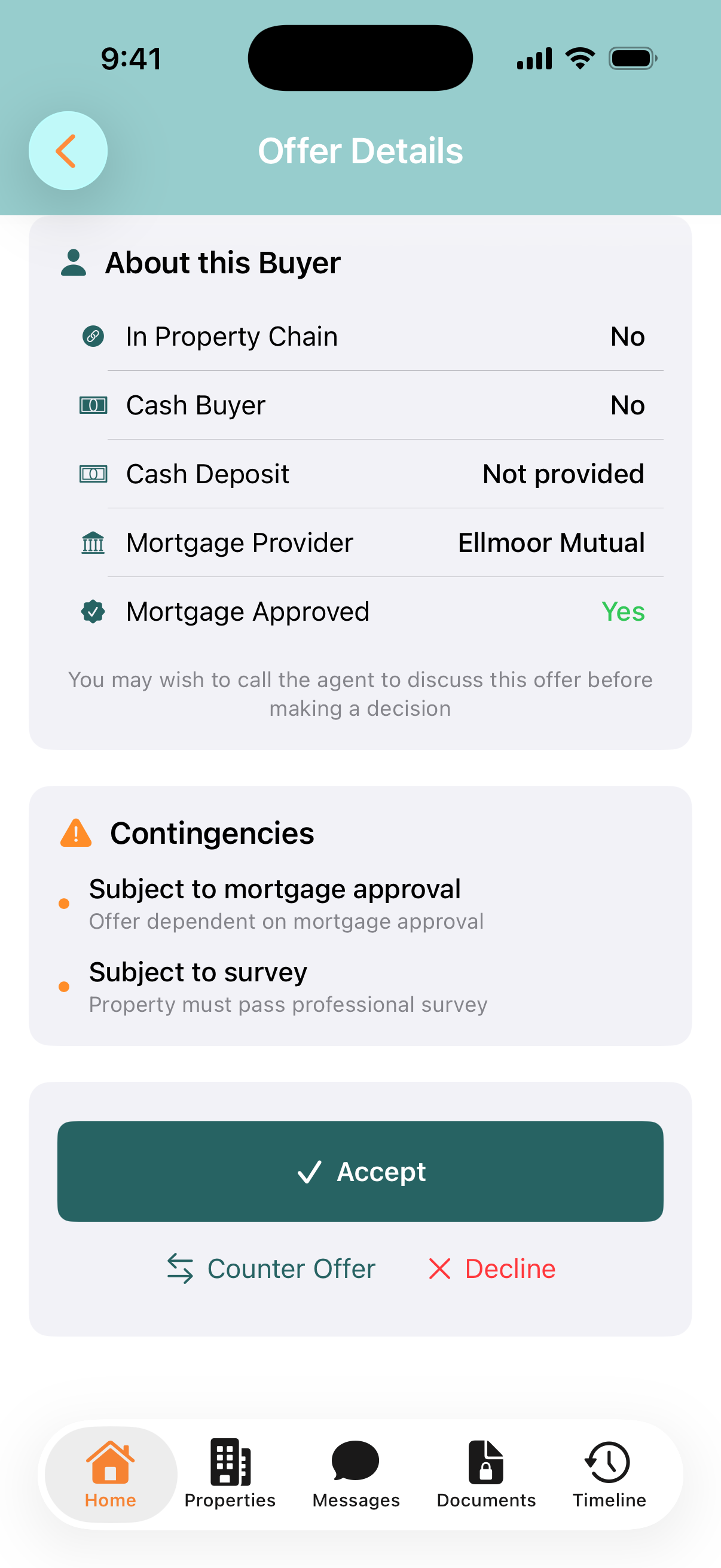
Offers
Sellers: open Manage Offers to accept, counter or decline each offer. Buyers: use Viewings and Make an Offer. When the seller accepts an offer, the sale moves on.
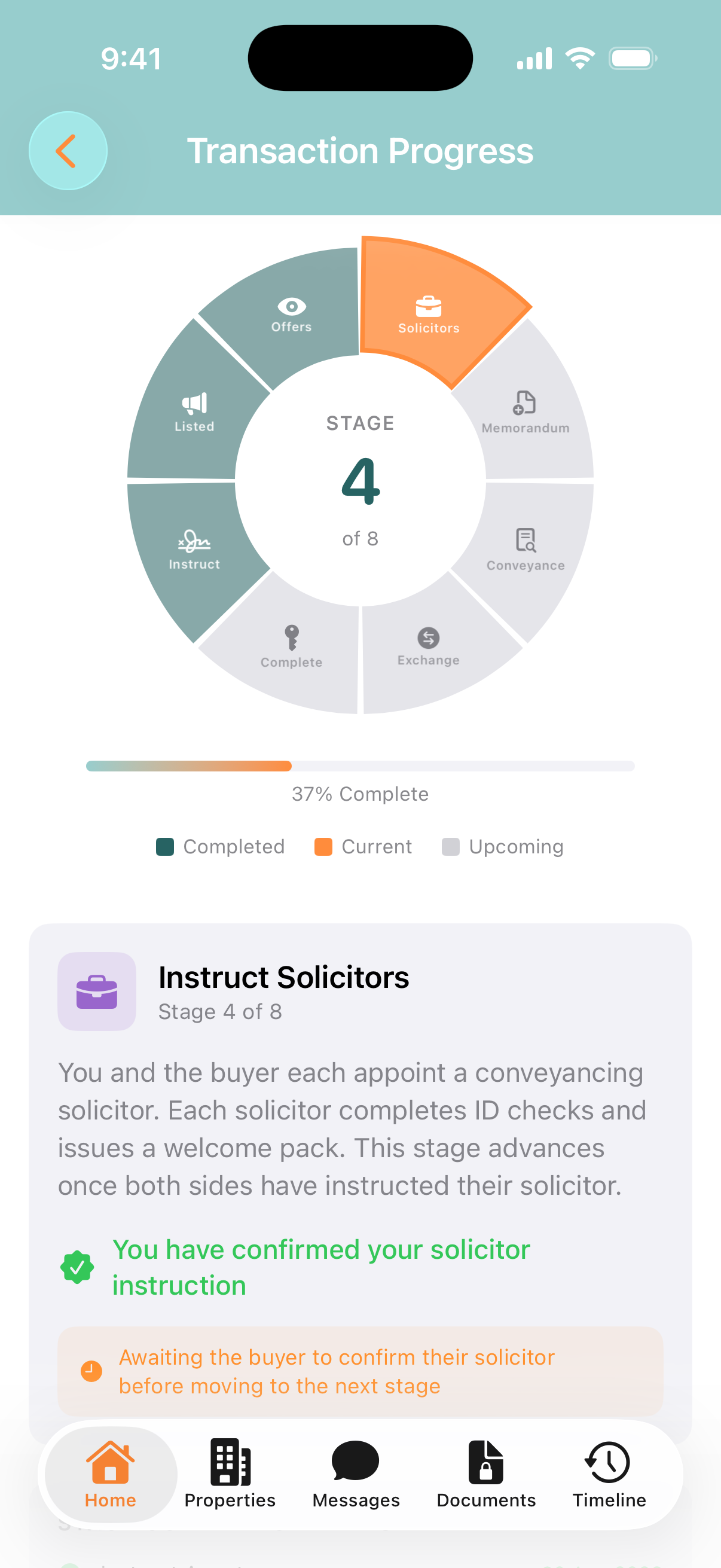
Solicitors
You and the other side each choose a solicitor, either one on Yomi or your own. With a Yomi solicitor you agree their fee in the app. Once both sides have instructed a solicitor, the sale moves on by itself. Your agent then sends everyone the Memorandum of Sale.
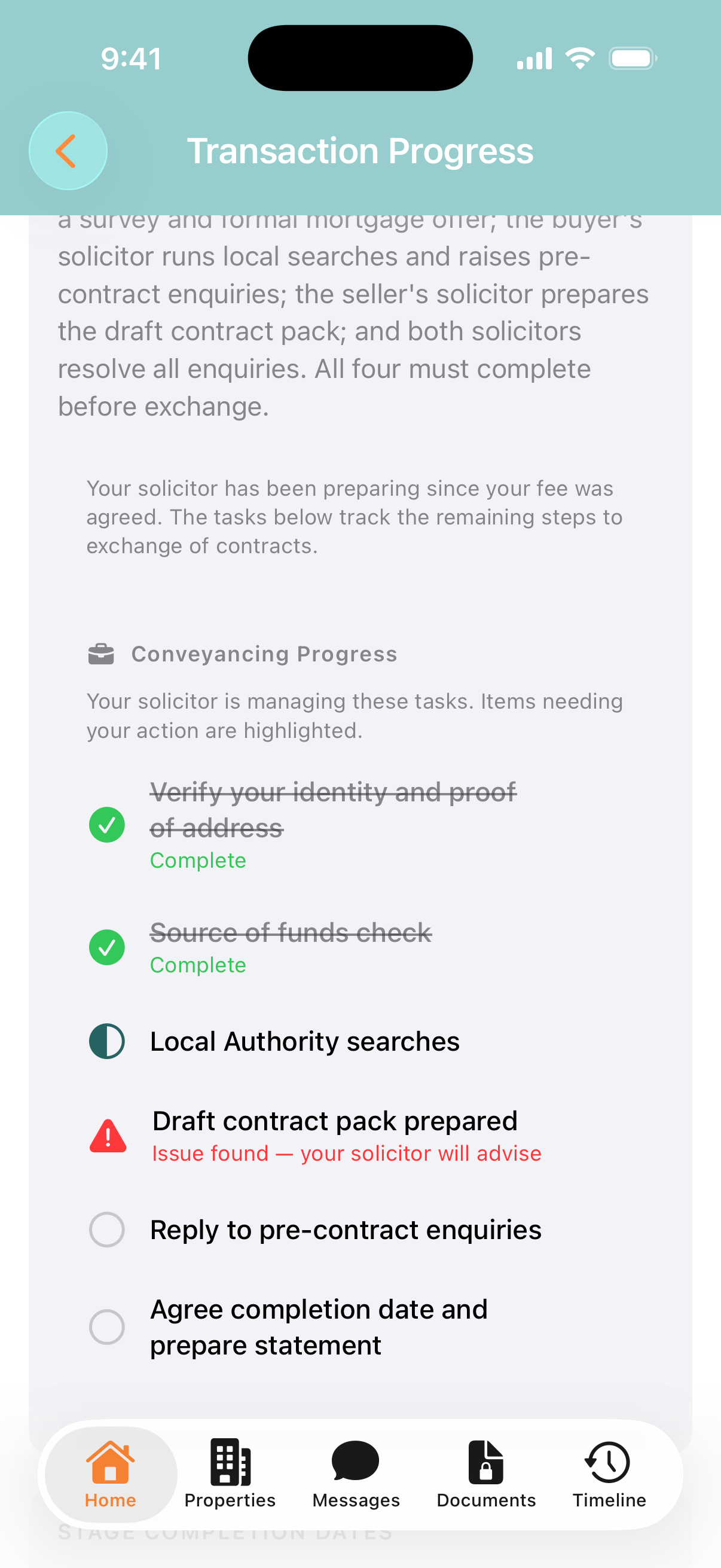
Conveyancing
If your solicitor is on Yomi, their tasks appear here, and anything they need from you is highlighted for you to answer. If not, the buyer ticks off four steps as they’re done: survey and mortgage offer, searches, draft contracts and enquiries.
Exchange and completion
If your solicitor is on Yomi, they confirm exchange and completion. If not, you and the other side each enter the agreed date, and on the day you both confirm. When completion is confirmed, the sale is done.
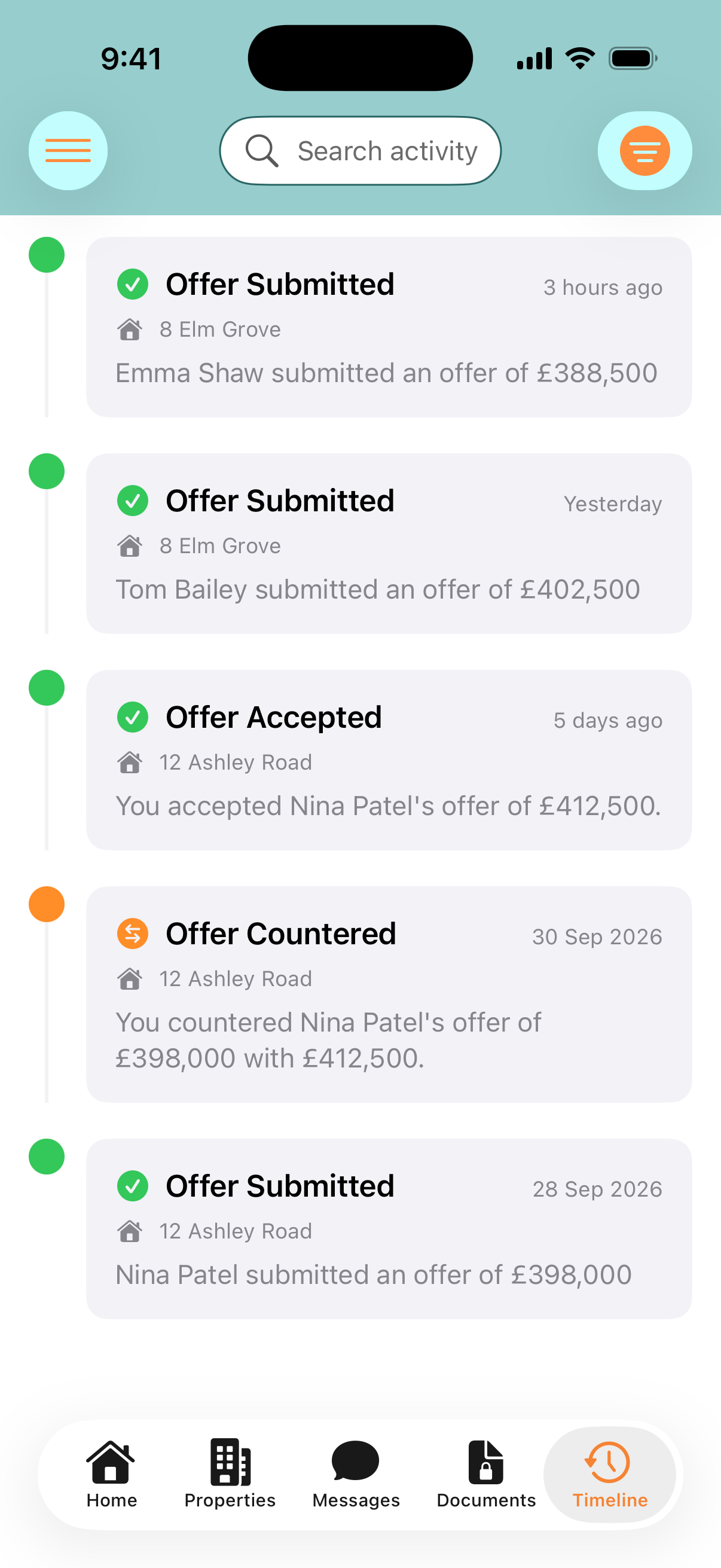
The Timeline
Every step is recorded in the Timeline tab, newest first, as it happens. Search it any time.
Ready to start?
Download Yomi Home and tap Register. It takes a couple of minutes.